

Apple Messages
Add A Feature
Designed and tested a feature that allows users to pin important messages in Apple Messages so they can easily save and access key information within conversations.
*This project was completed as part of the curriculum for a UX Bootcamp. I do not have any affiliation with Apple.
Overview
Message pinning feature
Messaging apps are used constantly for both personal and professional communication, yet important information within conversations can easily get lost in long message threads. This project explored how adding a message pinning feature to Apple’s Messages app could help users quickly access key messages while maintaining the platform’s simple and familiar interface.
Duration
Role
4 weeks
Sole Designer & Researcher
Skills
Research UX/UI Prototyping Testing
Discovery
The Problem
Users frequently lose track of important messages in busy conversations. Information such as addresses or event details often becomes buried in long threads, forcing users to scroll through messages or rely on inefficient workarounds like screenshots or note apps.
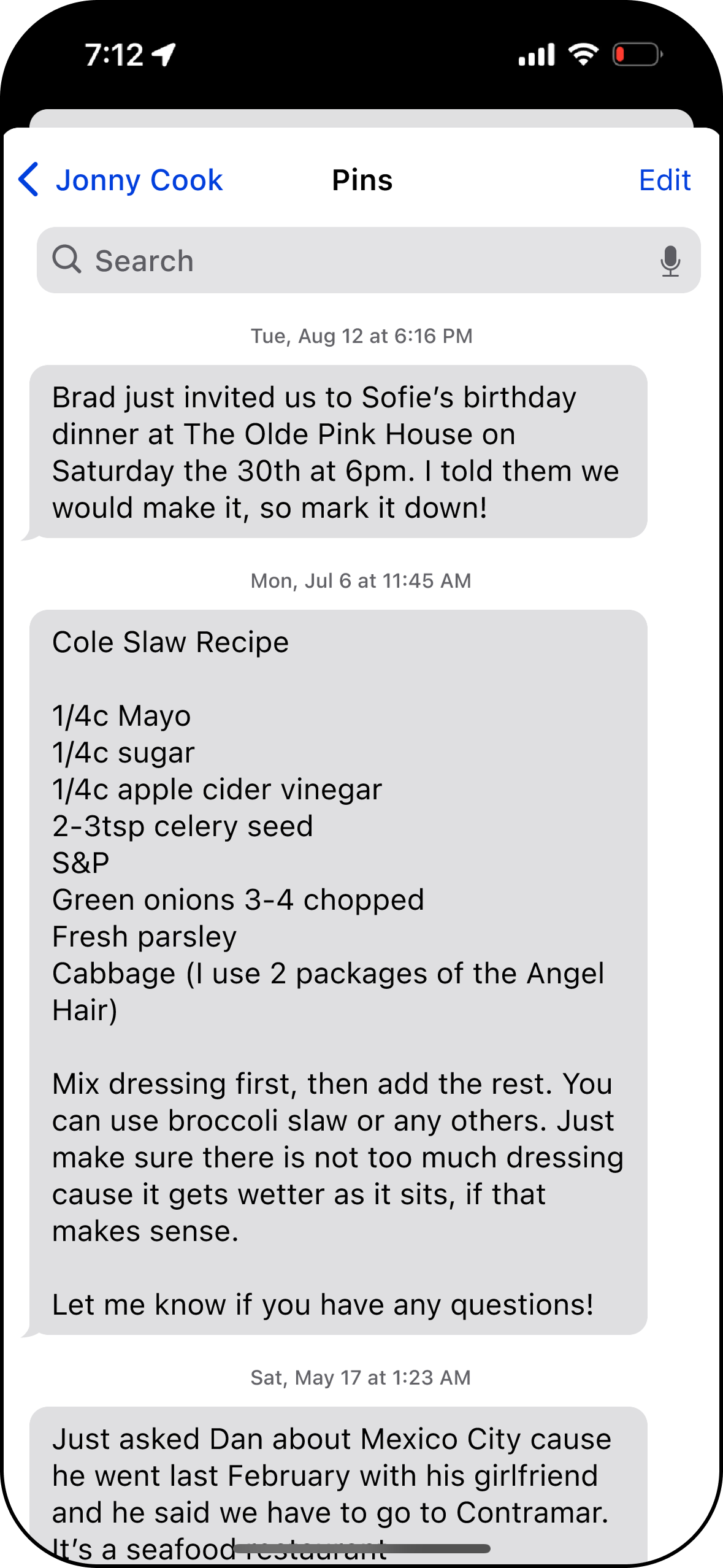
Apple Messages currently allows users to pin entire conversations and items like links or notes sent from the Notes App within a conversation. But, users cannot pin regular, individual messages, leaving a gap in message organization functionality.
The Goal
Design a feature that allows users to pin individual messages within a conversation so they can quickly return to important information without disrupting the simplicity of the Messages interface.
User Interviews
To better understand how people currently manage important information in their messages, I conducted user interviews and research focused on messaging habits, frustrations with existing pin features, and how users keep track of key messages within conversations.
Interviewees
Demographics
5
Ages 21-34
Method
Moderated
Key Insights
Message pinning is a highly valued feature, giving users a quick way to save and return to important information within busy conversations.
Most participants preferred having a time indicator for pinned messages, allowing them to control how long important information remains easily accessible.
Users expect pinned messages to be visible in multiple places, such as within the chat thread and on the contact profile or Shared With You screen, to ensure they can quickly find saved information.
Pinning is especially useful in group conversations, where participants often need to highlight important details like event plans, addresses, or shared resources for everyone in the chat.
Users want the ability to pin multiple types of content, including messages, photos, links, and locations, allowing them to organize information more flexibly.
Clear visual indicators, such as recognizable icons or banners, are essential for helping users easily identify and navigate pinned messages within a conversation.
Competitive Analysis
Messaging platforms such as WhatsApp and Facebook Messenger were reviewed to understand how existing apps support message organization and pinning features. Both platforms offer the ability to pin messages, helping users quickly access important information within conversations while maintaining simple and familiar interfaces. Analyzing these apps helped identify common strengths—such as ease of use, large user bases, and multi-device communication—as well as limitations and opportunities for improvement that informed the design of the pinning feature.
Problems with Existing Solutions
Limited Message Pinning Flexibility
Some messaging apps restrict how pinned messages are displayed or managed, making it difficult for users to organize and access multiple important messages within a conversation.
Low Visibility of Pinned Content
Pinned messages are not always clearly presented within the chat interface, requiring users to navigate to separate sections or menus to find them again, which reduces the convenience of the feature.
Affinity Mapping
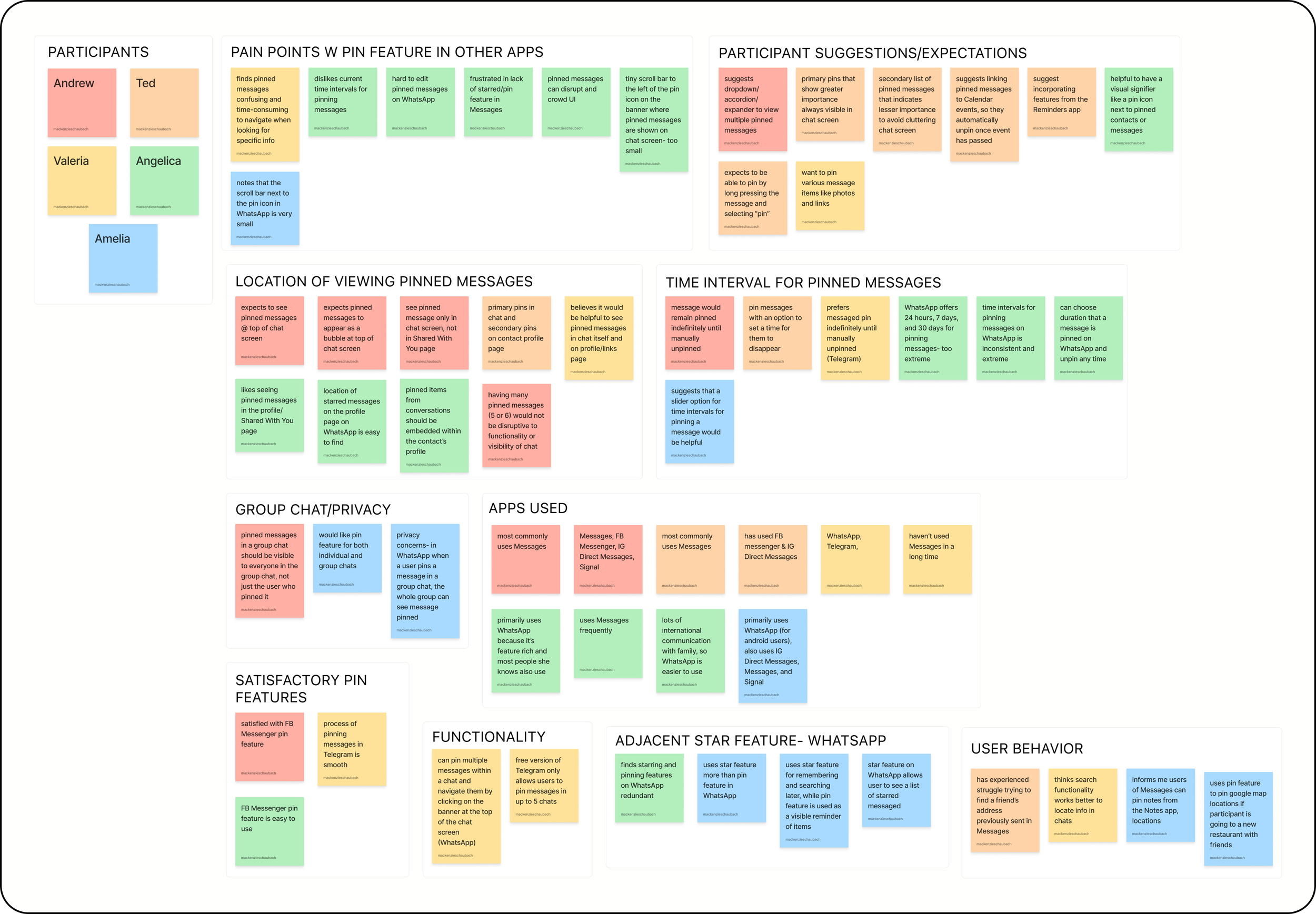
To synthesize research findings, I created an affinity map to organize patterns and themes that emerged from user interviews. Grouping insights into categories helped identify common pain points, user behaviors, and expectations around message organization, which ultimately informed the key features and design decisions for the pinning functionality.
Understanding the User
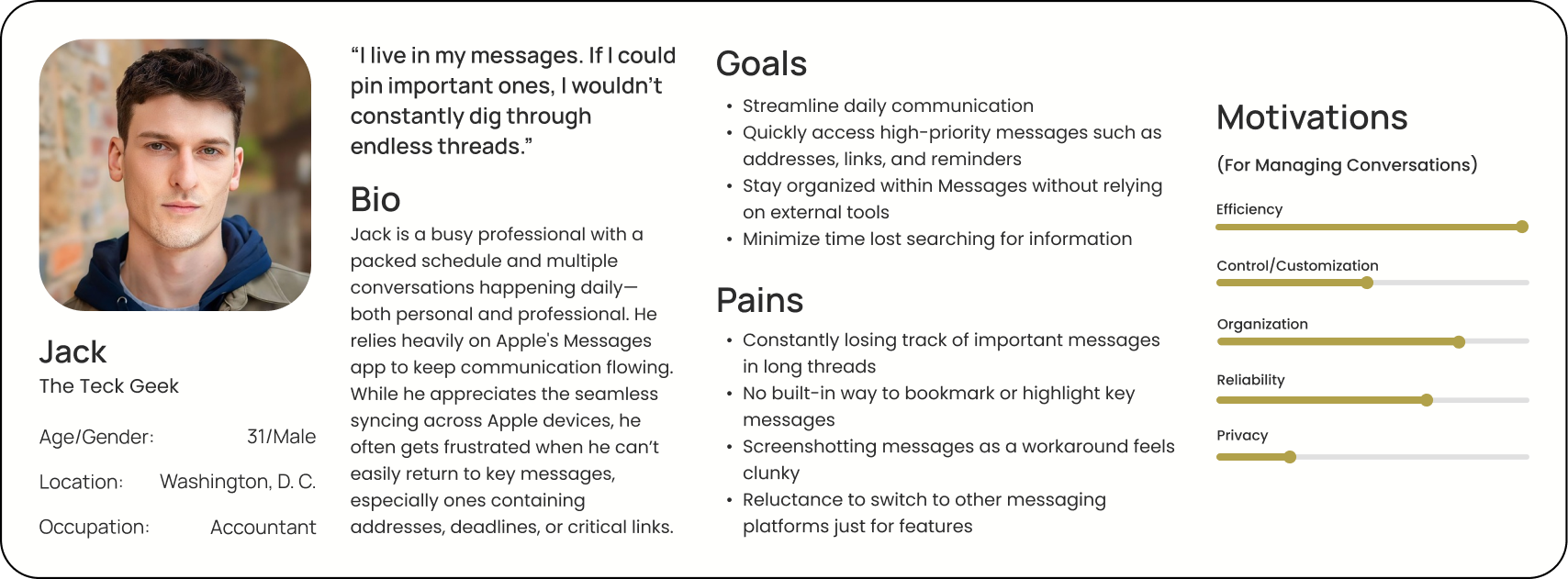
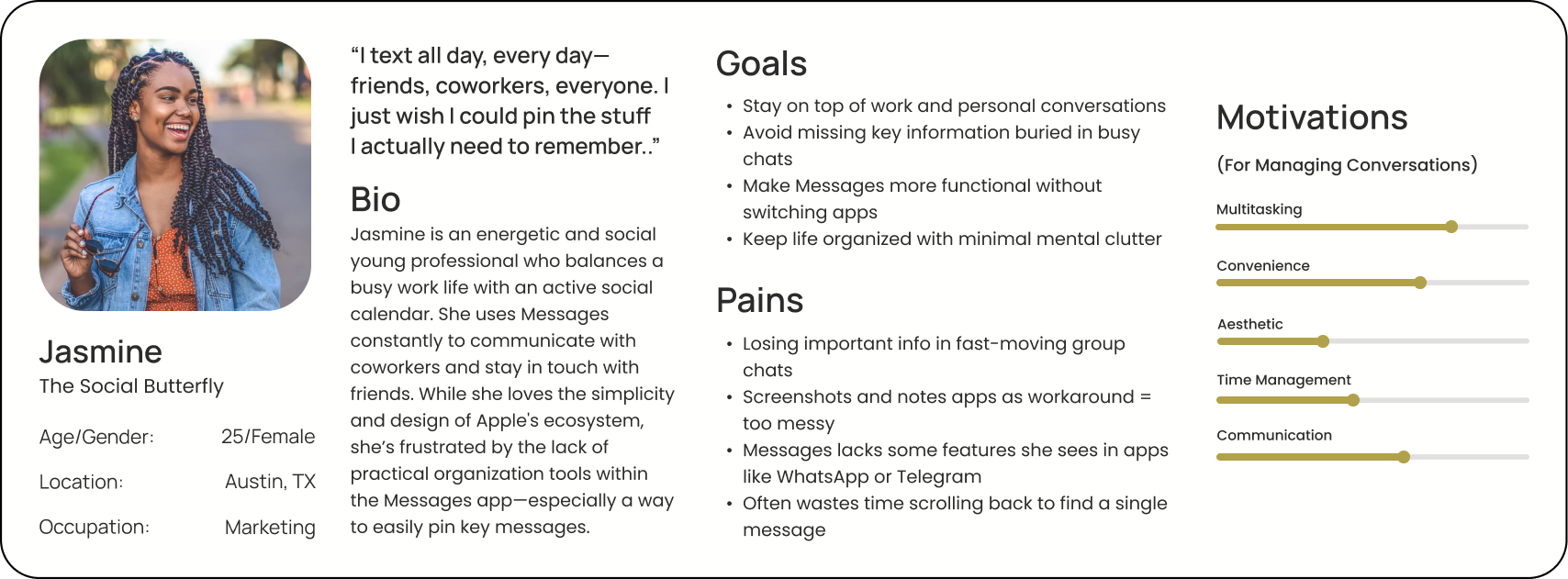
Based on research insights, two personas were developed: Jack, the Tech Professional, and Jasmine, the Social Communicator. While Jack represents busy professionals who rely on messaging for both work and personal coordination and need a faster way to retrieve important information, Jasmine represents highly active messaging users who juggle multiple conversations and want a simple way to keep important details from getting lost in busy chats.
User Needs and Wants
Accessibility
Quickly access important messages without scrolling through long conversation threads.
Organization
Organize important information directly within Messages without relying on external tools.
Efficiency
Reduce the time and effort required to locate key messages in busy conversations.
Simplicity
Manage messages in an intuitive way that integrates seamlessly with Messages.
Ideation
Low Fidelity Sketches
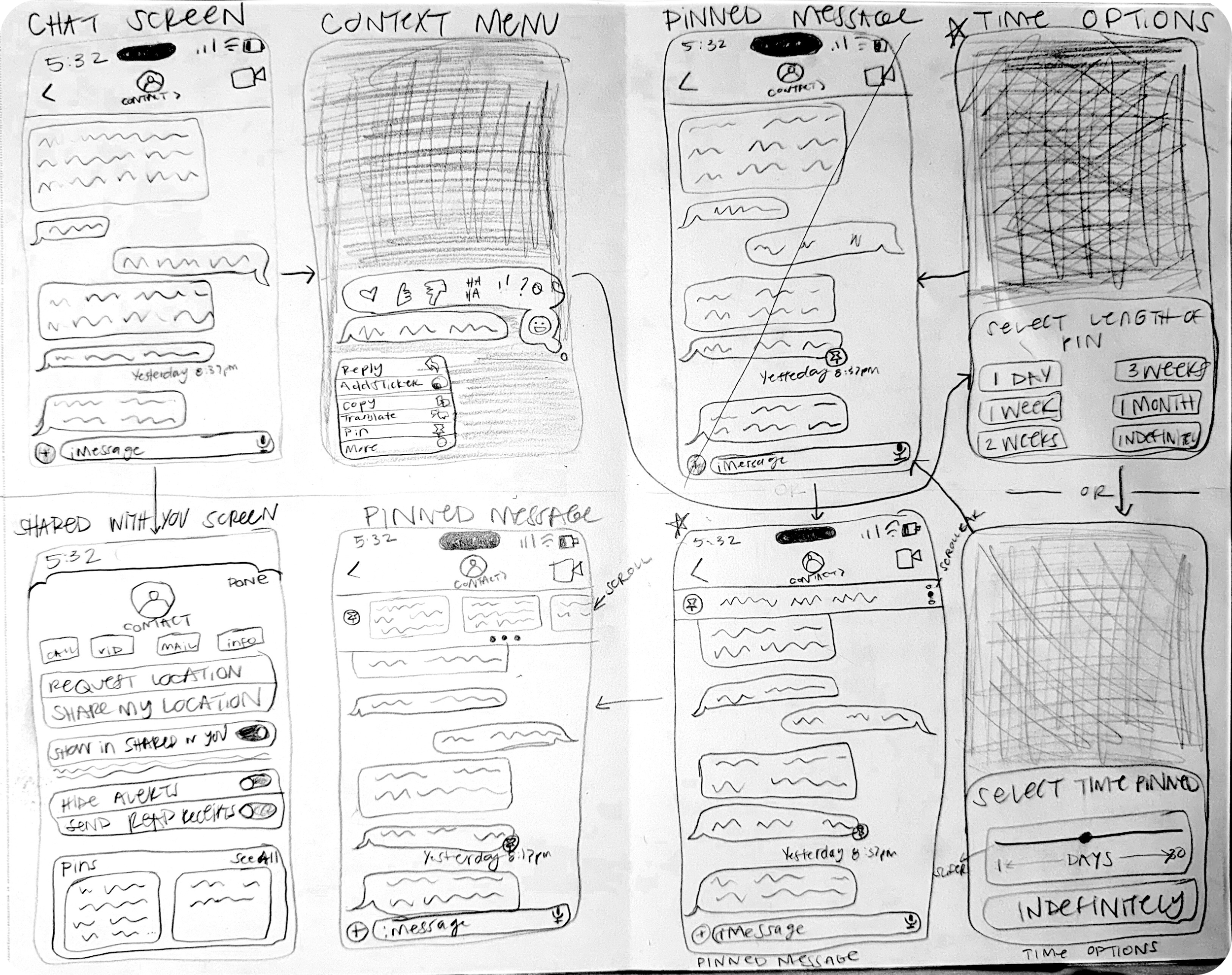
This set of sketches explores early concepts for how users could pin important messages within the Messages app. The sketches focus on key interactions such as accessing the pin feature through the message context menu, selecting a pin duration, and viewing pinned messages within the chat interface and Shared With You screen. These low-fidelity explorations helped quickly test layout ideas and interaction patterns before moving into digital wireframes.
User Flow
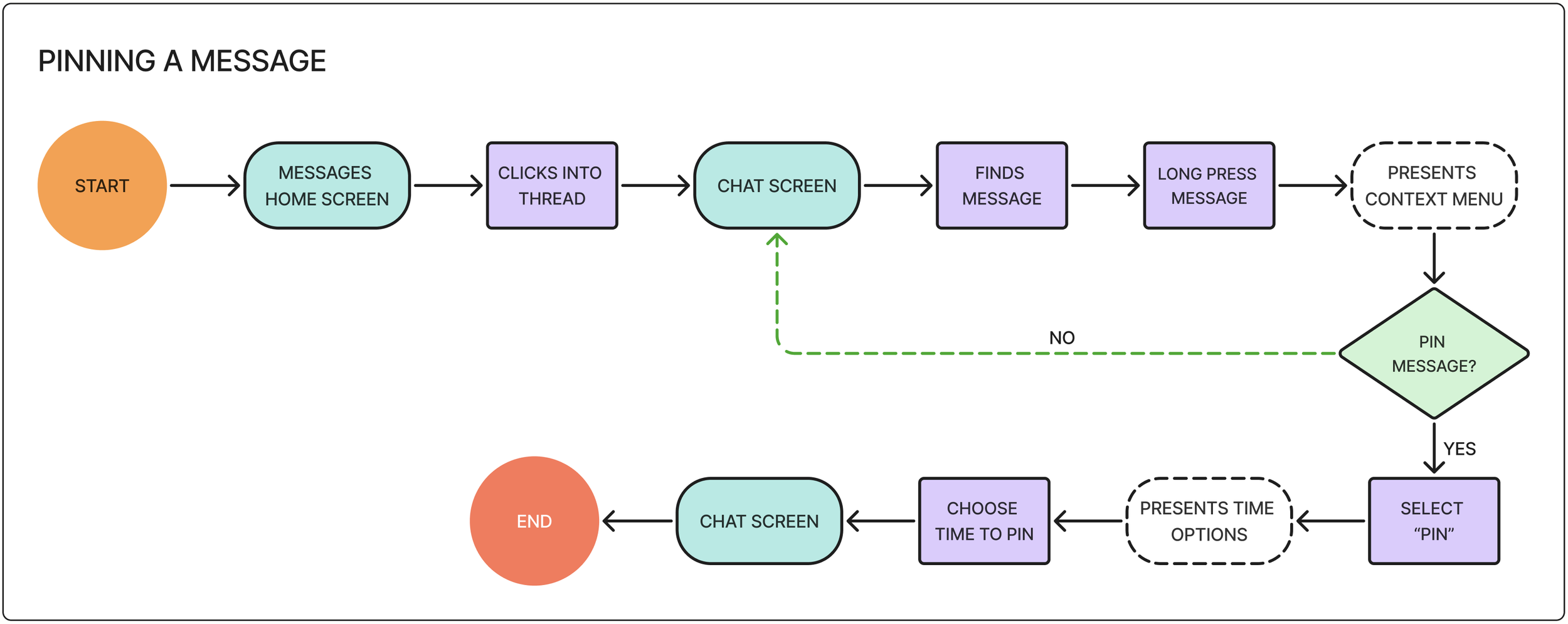
This user flow illustrates how users pin an important message within a conversation in the Messages app. From the chat screen, users long-press the message they want to save and select “Pin” from the context menu. They then choose how long the message should remain pinned, after which the message appears at the top of the conversation, allowing users to quickly reference and navigate back to it when needed.
Mid-Fidelity Screens
After exploring ideas through low-fidelity sketches, mid-fidelity screens were created to refine the layout, navigation, and interaction flow of the feature before moving into visual design. At this stage, I focused on integrating the pin functionality into the existing Messages interface in a way that felt intuitive and consistent with Apple’s design patterns. These screens allowed me to test how users would pin messages, select pin durations, and access pinned content while identifying opportunities to simplify navigation and improve clarity.
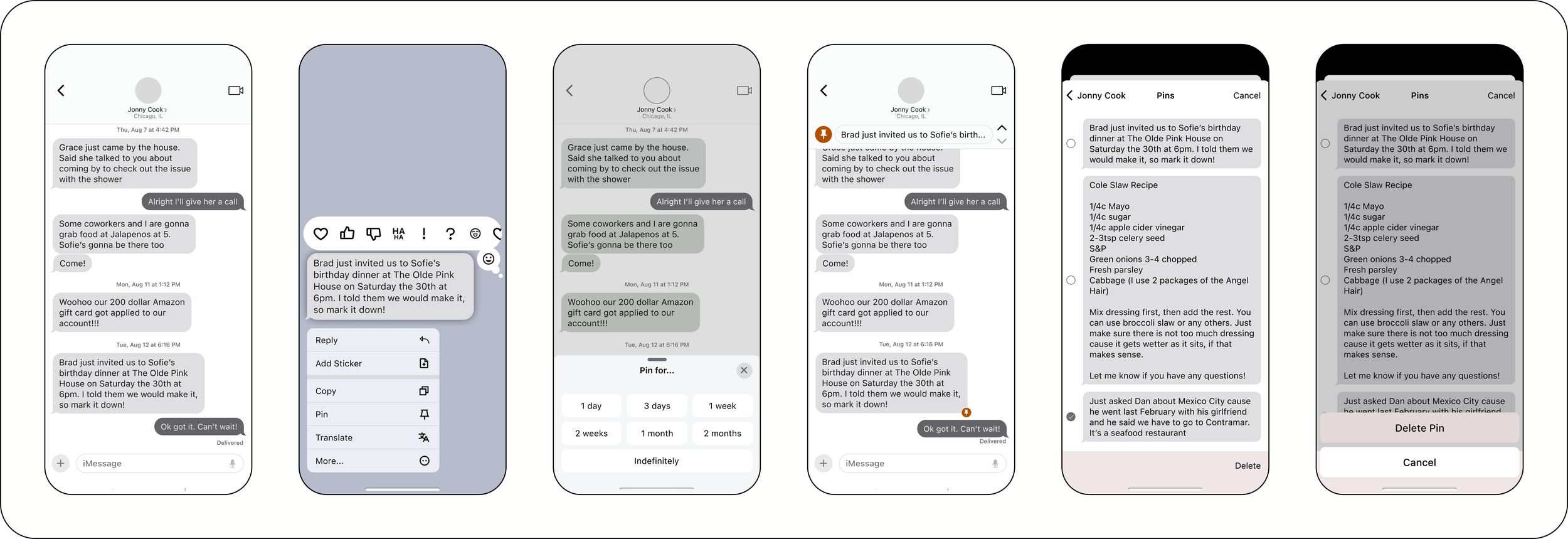
Frame 1: Chat screen | Frame 2: Context menu | Frame 3: Pin duration options | Frame 4: Pinned message in chat | Frame 5: Pinned messages in Shared with You | Frame 6: Confirm unpin
Design
Branding
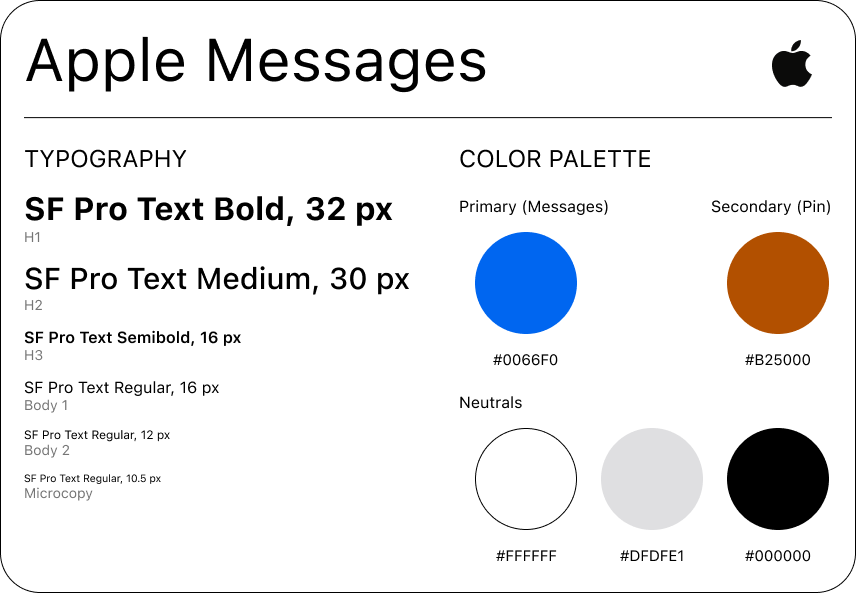
Working within Apple’s established design language ensured that the new pinning feature felt native to the Messages app while maintaining consistency with the existing interface. A key focus was aligning the feature with Apple’s Human Interface Guidelines, including the use of familiar interaction patterns, iconography, and typography. By carefully recreating the Messages UI in Figma and integrating the pin feature into existing elements such as the context menu and conversation layout, I was able to introduce new functionality while preserving the clean, minimalist aesthetic that users expect from Apple’s messaging experience.
High Fidelity Screens
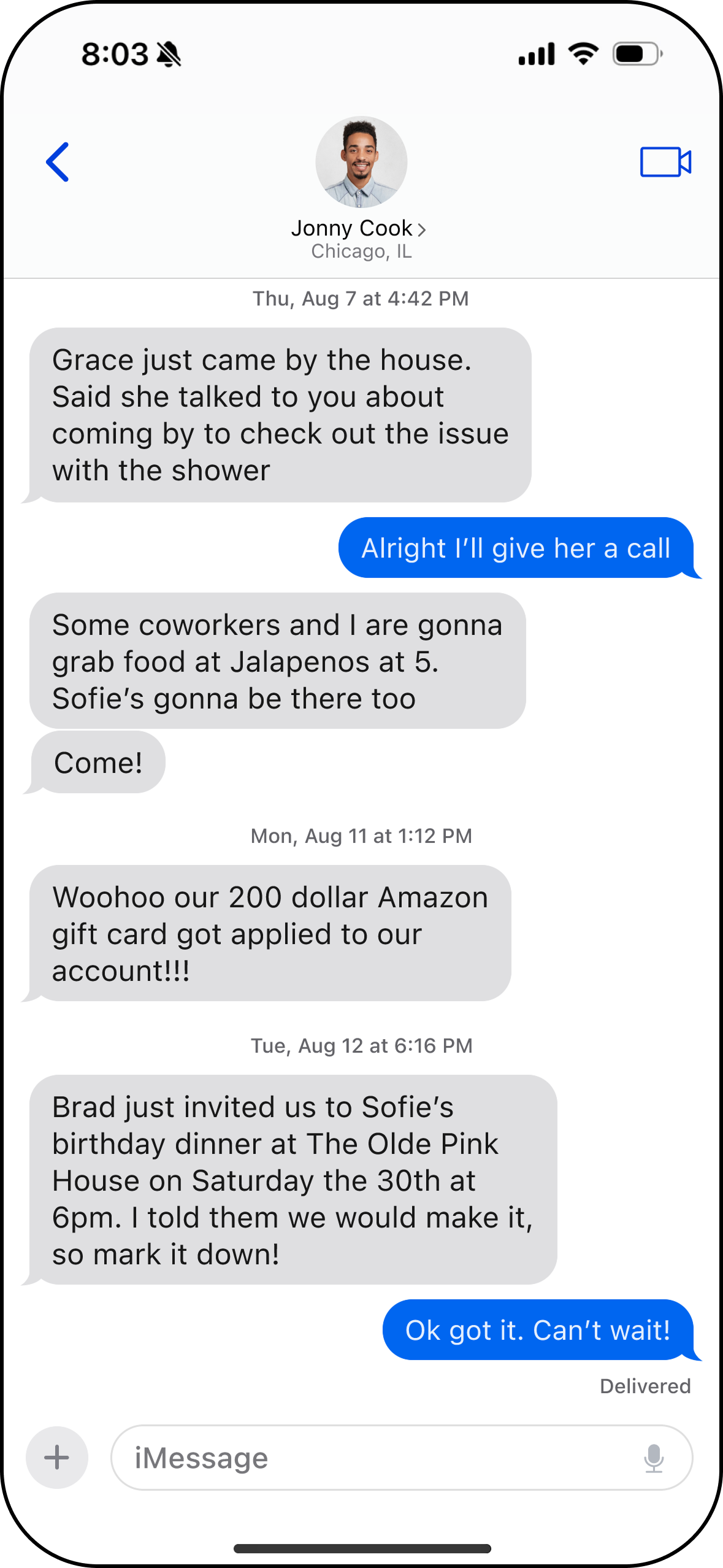
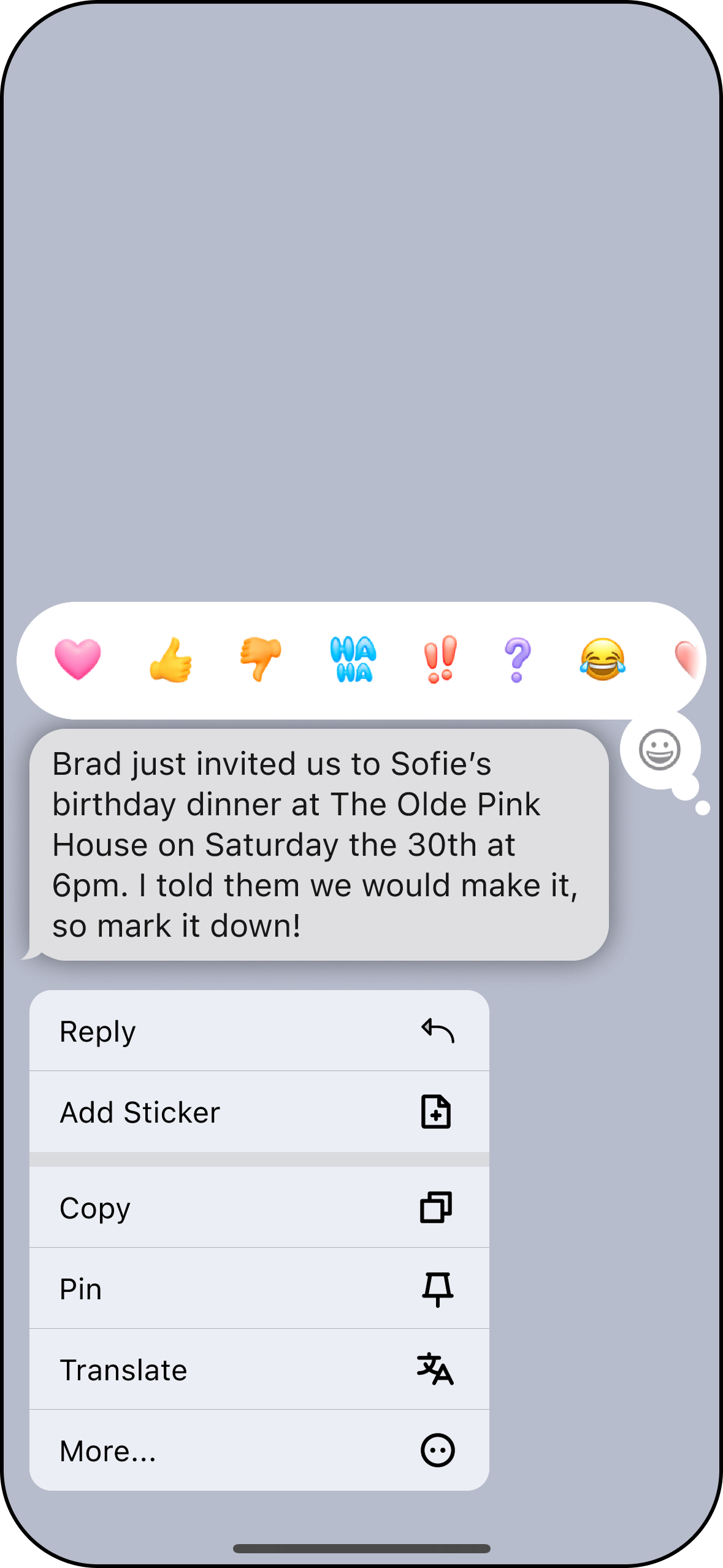
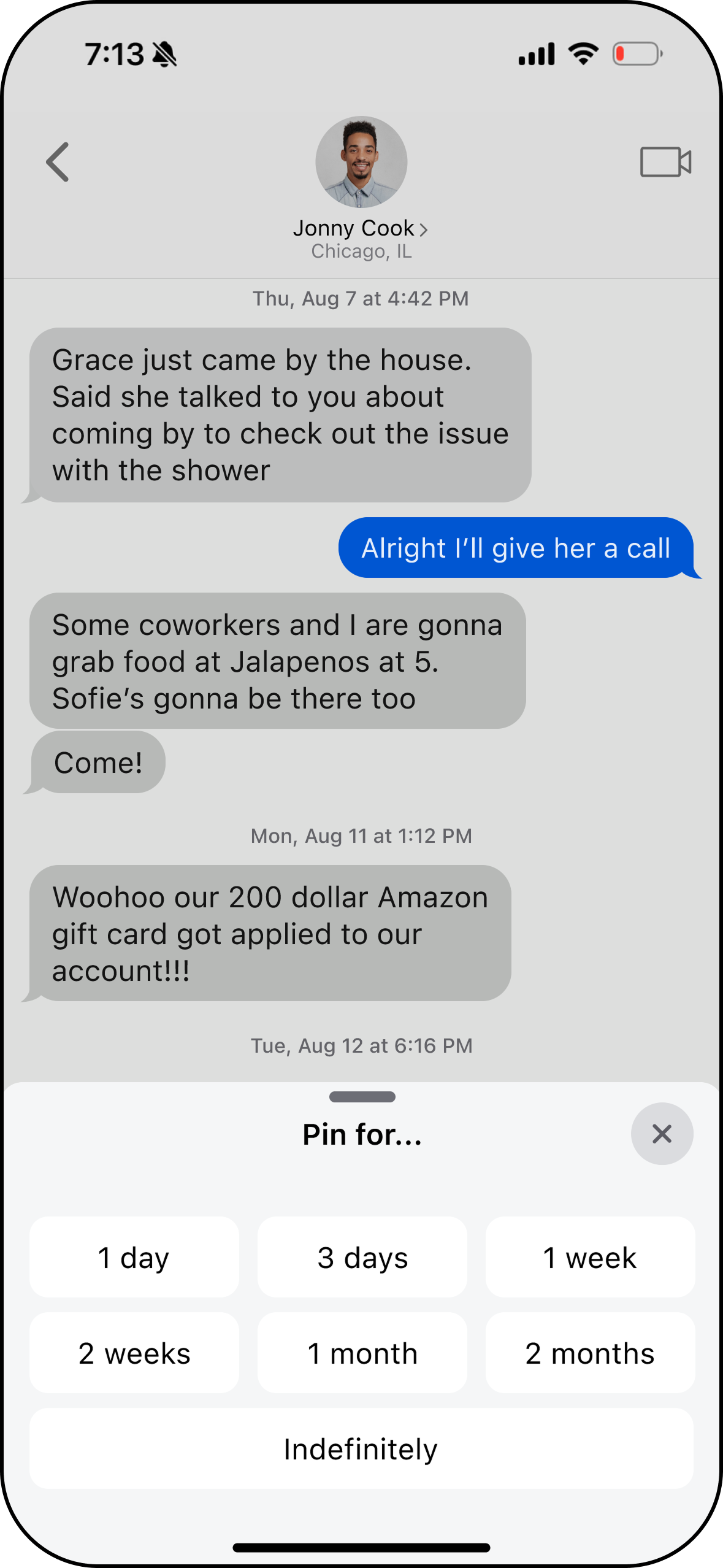
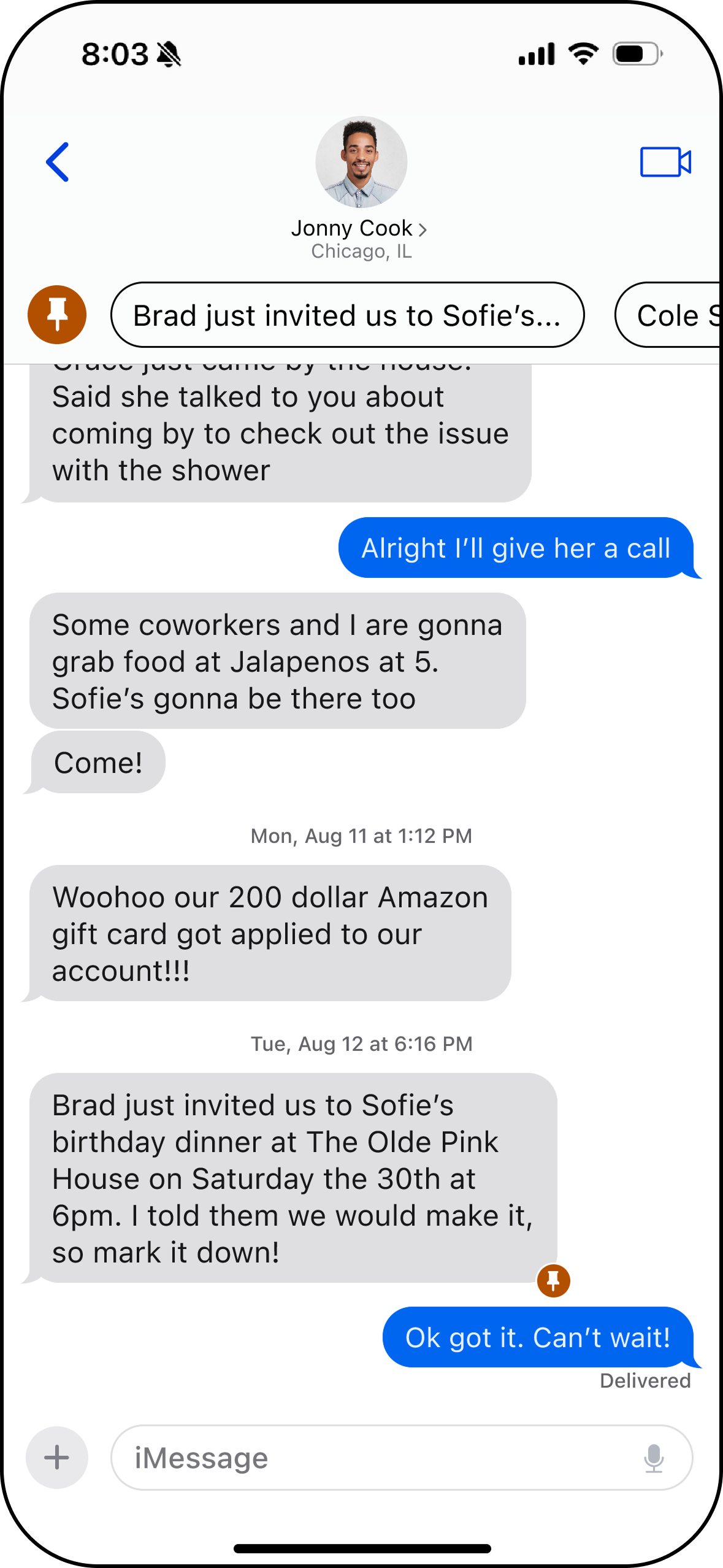
Applying Apple’s design patterns and interface conventions, I developed high-fidelity screens to translate the interaction concepts into a realistic Messages experience. This phase focused on integrating the pin feature into the existing interface while refining layout, spacing, and hierarchy to maintain Apple’s clean and familiar design language.
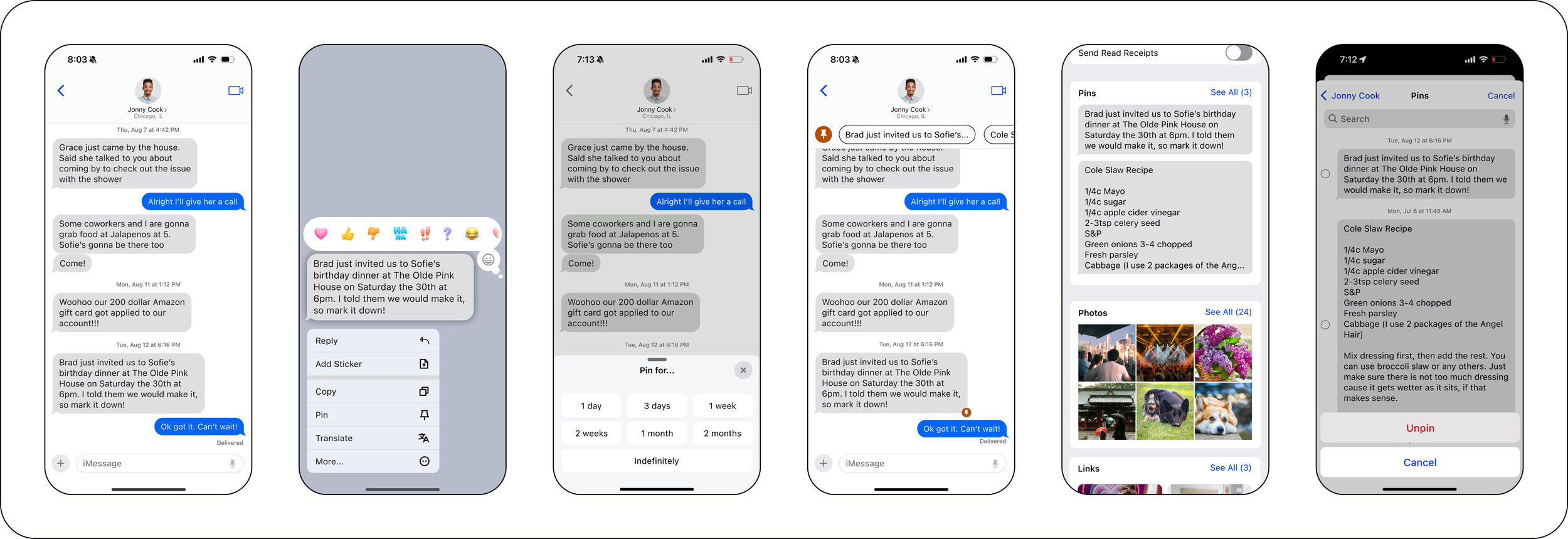
Frame 1: Chat screen | Frame 2: Context menu | Frame 3: Pin duration options | Frame 4: Pinned message in chat | Frame 5: Pins section in Shared With You | Frame 6: Unpin
Key Features
Pin Message
Users can pin a message by long-pressing it and selecting Pin from the context menu.
Custom Pin Duration
Users can select how long a message remains pinned.
Jump-to-Navigation
Users can quickly navigate back to the original message from the pinned message banner.
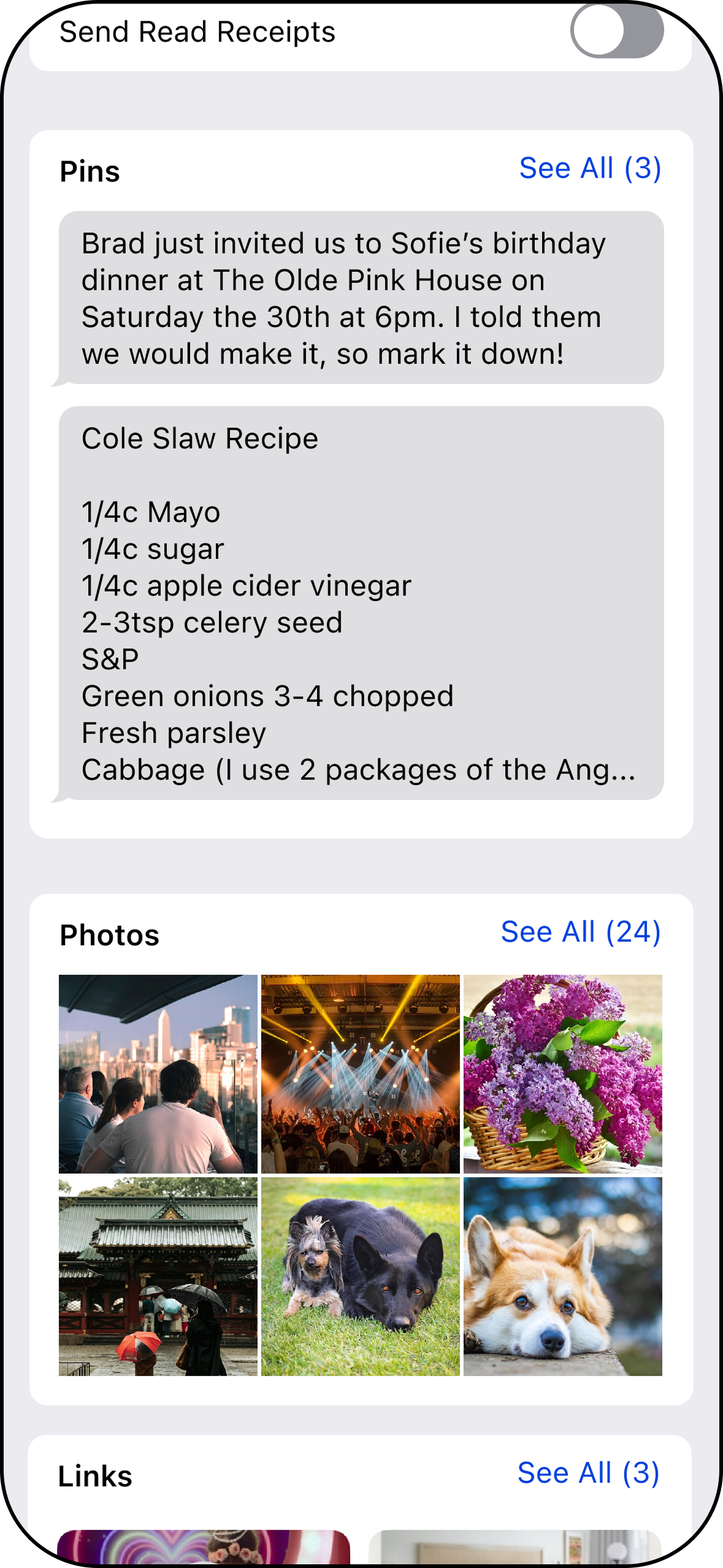
A dedicated pins section in the Shared With You screen allows users to view and edit all pins.
Pins Screen
Testing
Usability Testing
Usability testing was conducted through moderated sessions using a high-fidelity prototype of the feature. Participants completed key tasks such as pinning a message, selecting a pin duration, locating pinned messages, and unpinning content to evaluate how easily they could navigate the interaction. Overall, users found the feature intuitive and aligned with their expectations of the Messages interface, and their feedback provided valuable insights for refining visibility, organization, and interaction clarity.
Key Successes
Intuitive Interaction
Participants quickly understood how to pin a message using the long-press context menu.
Users easily recognized pinned messages and appreciated having important information surfaced within the conversation.
Clear Organization
The feature felt consistent with existing Messages interactions and did not disrupt the familiar interface.
Natural Integration
Opportunities for Improvement
The navigation arrows in the pinned message banner were too small, making it difficult for users to easily identify and interact with them.
In Chat Navigation
Participants wanted ability to quickly search keywords within pinned messages to quickly locate specific information without manually scrolling.
Search pins
Some users wanted an AI-generated summary of the pinned message to quickly understand the context.
AI Summary
Priority Revisions
Based on insights from usability testing, I prioritized revisions that would have the greatest impact on usability and interaction clarity. These updates focused on refining interactions and improving the overall intuitiveness and usability of the experience.
In Chat Navigation
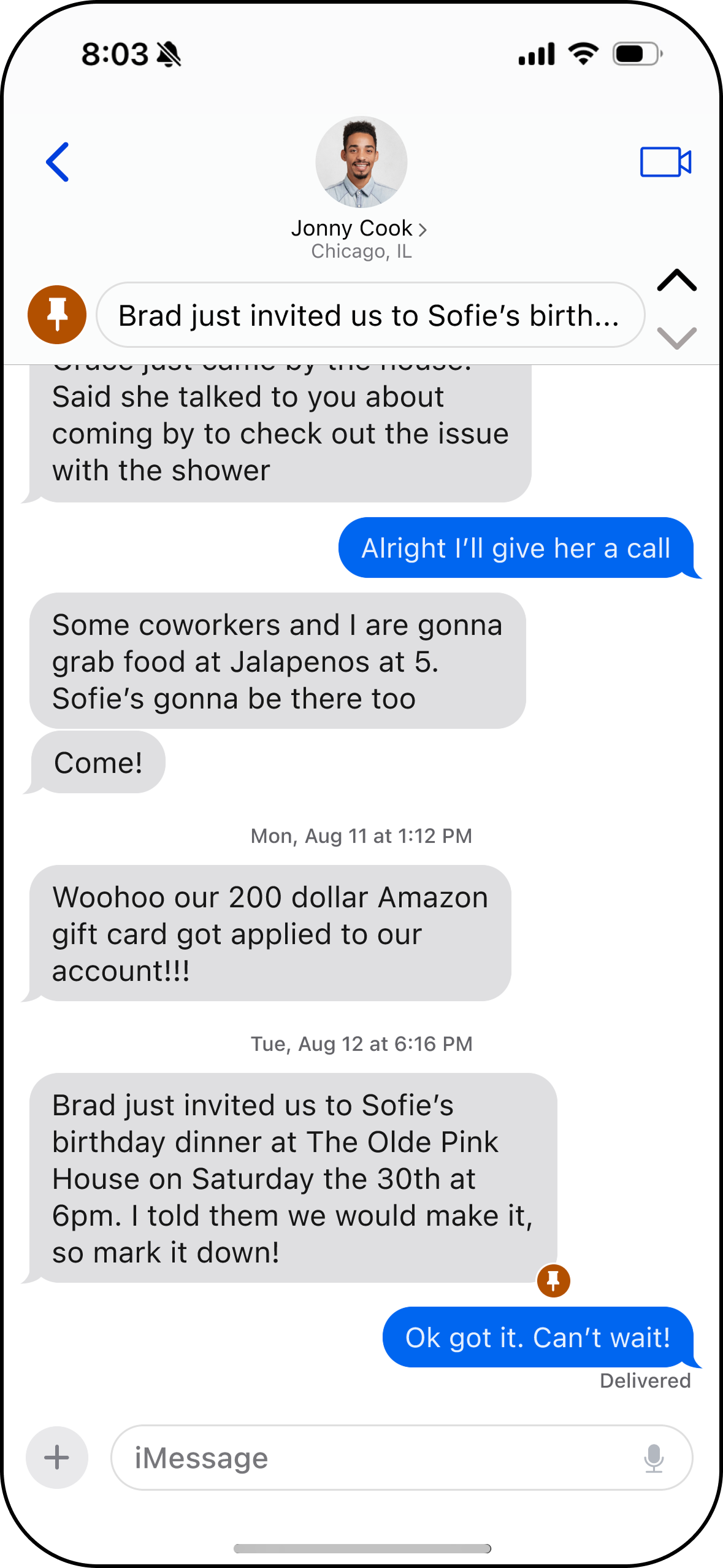
Before—Small arrows were used to navigate pinned messages on the chat screen.
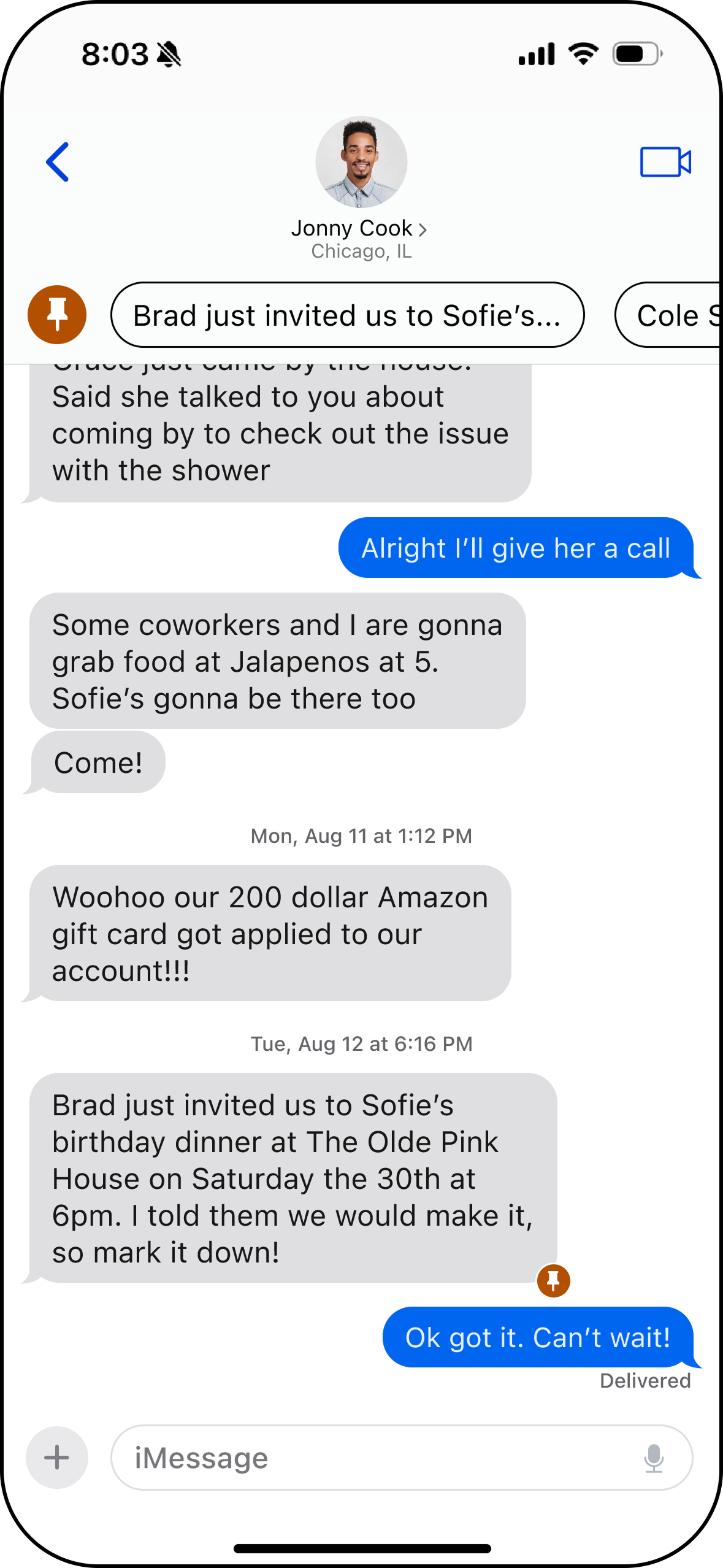
After— Changed the pin messages banner to a swipe that automatically locates the pinned message in the chat.
Search pins
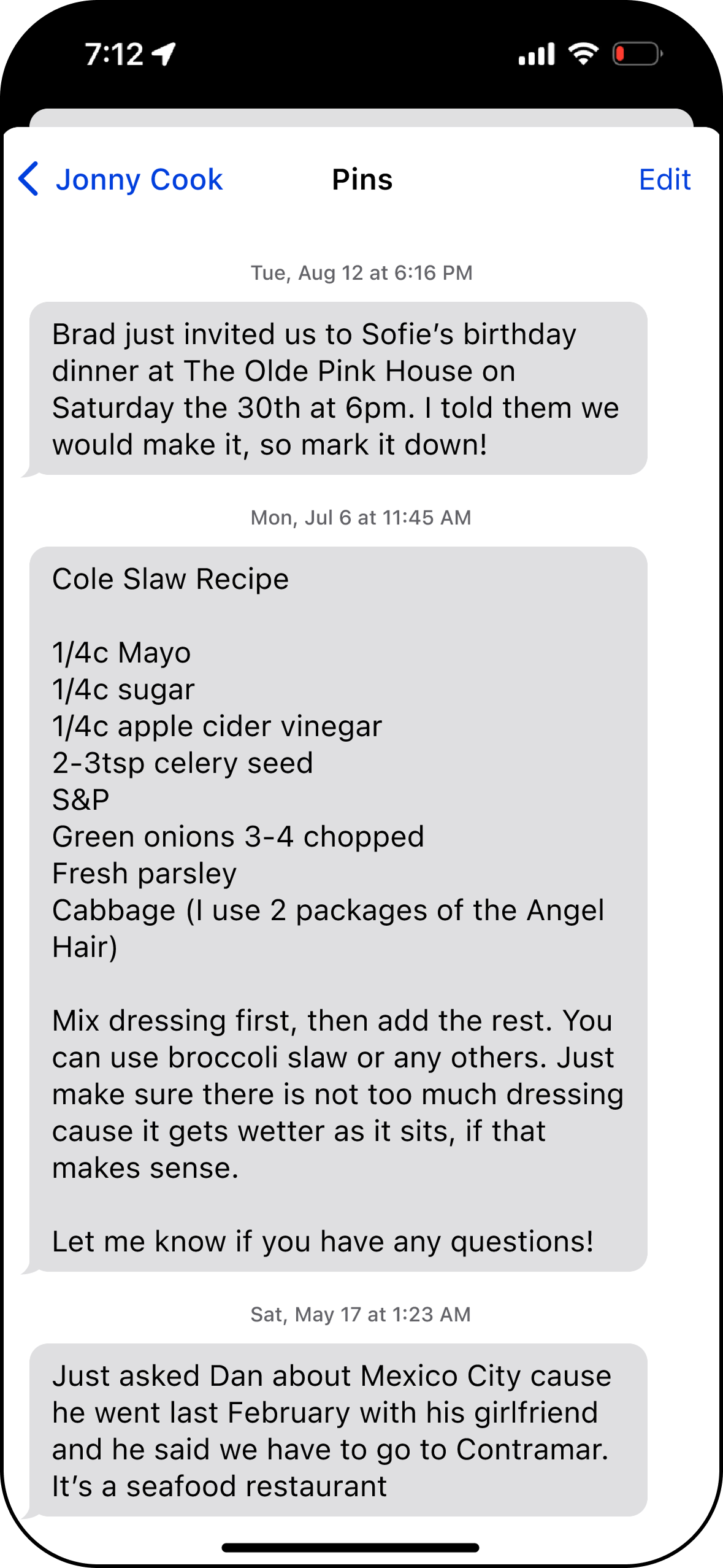
Before—Scrolling through all pinned messages was the only way to locate them.
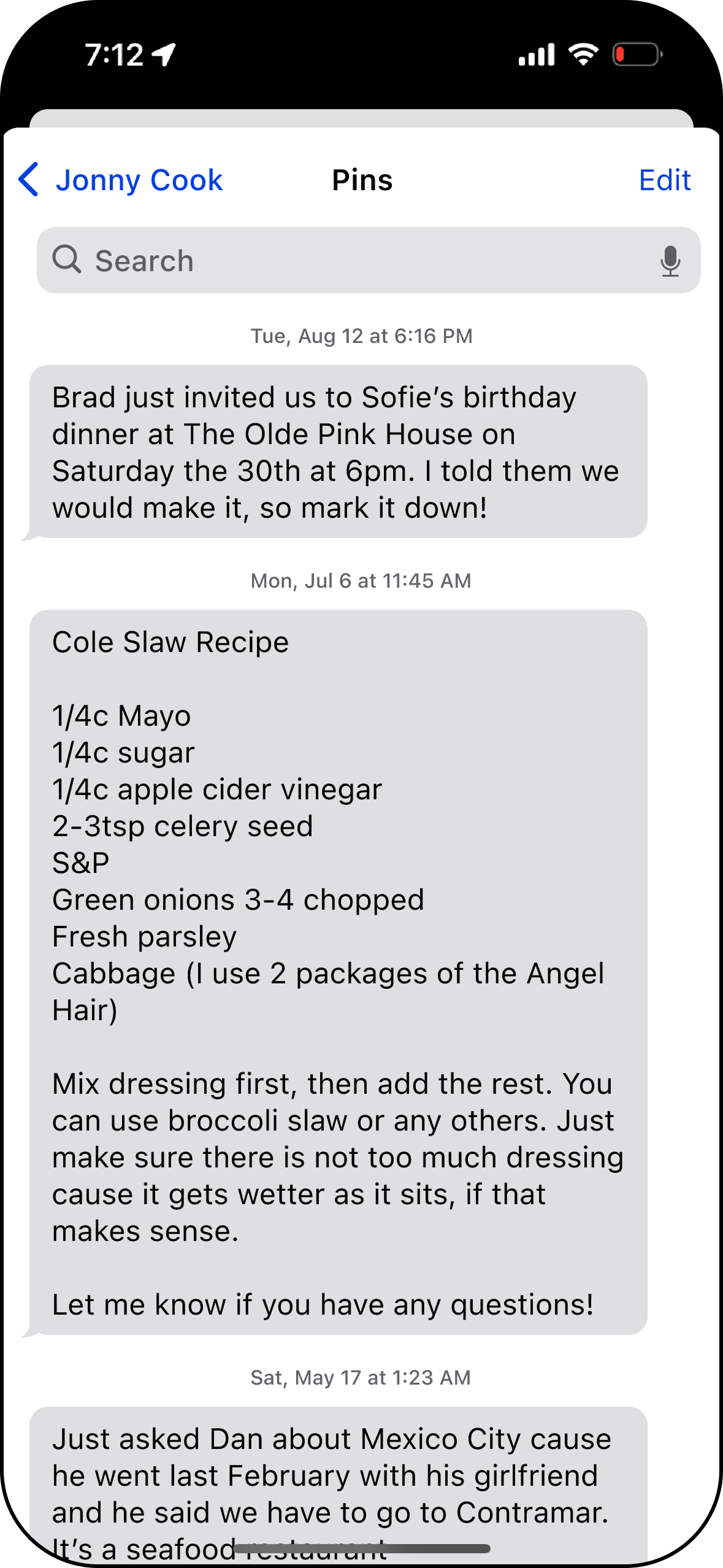
After—Added a search bar to locate pinned messages through keywords.
Prototype
See the Pin Messages Feature live!
Conclusion
Key Takeaways, Learnings & Next Steps
Designing a feature within an existing product requires balancing new functionality with established design patterns. The pinning feature needed to improve message organization while still feeling seamless within the Messages interface. User research and usability testing were essential for understanding how users expected the feature to work and ensuring the final design aligned with those expectations. This was especially important given how widely used Apple Messages is, and how familiar many users already are with its interface and interaction patterns.
Key Takeaways
This project strengthened my ability to design within strict design constraints while introducing new functionality. I also gained valuable experience translating research insights into interaction design decisions and refining those designs through usability testing. Most importantly, I learned the importance of considering multiple user scenarios and edge cases when designing features within an existing system.
What I Learned
Future iterations could expand the functionality of pinned messages by exploring deeper integration with other Apple services. Further testing with a broader group of users could also help uncover new opportunities to refine the feature and improve the overall experience.
Additional exploration could focus on how pinned photos and videos appear within the interface. One- to two-word AI-generated summaries could help quickly communicate the content of pinned media, allowing photos or videos to appear more clearly and concisely within the pinned message banner. Future iterations could also explore privacy controls in group chats, such as giving users the option to pin messages either for themselves or for the entire group.
Next Steps